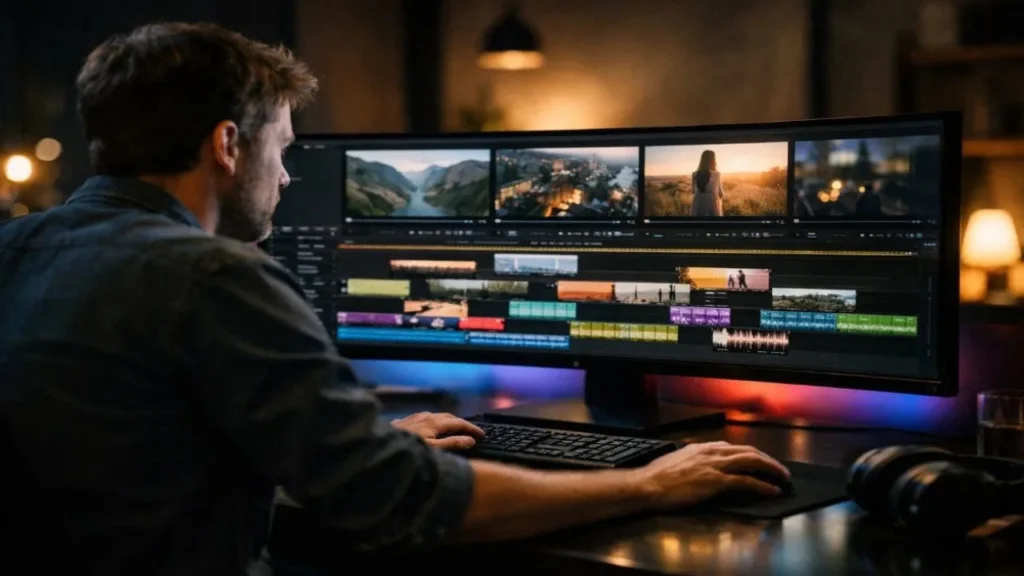
Text-to-video tools make video creation fast and simple. You write a script, click generate, and within minutes, you get a complete video. No camera setup. No advanced editing skills required.
But speed comes with trade offs.
When using Clippie AI, many creators notice three common problems:
- Mismatched visuals
- Pacing that feels too fast or too slow
- Awkward scene transitions
These issues make videos look automated instead of professional.
The solution is not to regenerate the video again and again. The solution is smart editing.
Clippie AI gives you a strong starting point, but it still needs small manual adjustments. With the right approach, you can align visuals properly, control timing, and smooth transitions without complex tools.
In this guide, you’ll learn exactly how to fix common text-to-video mistakes in Clippie AI using clear editing logic and practical steps.
Let’s get straight into the fixes.
Why Text-to-Video Tools Sometimes Get It Wrong
Text-to-video tools work by reading your script and matching it with visuals. They pull from stock videos, motion graphics, or AI-generated clips. Popular platforms like Synthesia follow this same basic process.
Here’s the simple truth: the AI looks for keywords.
It does not fully understand your message the way a human editor does. It scans words and tries to guess the best visual match.
Sometimes that guess is accurate.
Sometimes it’s completely off.
For example, if your script says “breaking growth barriers,” the AI might show a person smashing a wall with a hammer. Technically, it matches the words. But it misses the real meaning, which is business growth.
That’s the main problem.
AI focuses on words. Humans focus on meaning.
This gap is why auto generated videos often need small corrections. When you review and adjust the visuals yourself, the video instantly looks more intentional and professional.
1. Fixing Mismatched Visuals in Clippie AI
What Causes Mismatched Visuals?
Mismatched visuals are very common in text-to-video tools.
Here’s why it happens:
- The script uses abstract words like “growth” or “success.”
- The AI selects clips based on single keywords.
- The scene does not clearly explain what should appear on screen.
Clippie AI scans your text and tries to match it with available footage. It does not fully understand your intent. It only reacts to words.
When visuals do not clearly support your message, viewers get confused. Confused viewers leave faster. That reduces watch time and overall engagement.
Simple rule: If a visual does not directly support the sentence, change it.
Clear message. Clear visuals. Better video.
How to Fix It (Step-by-Step)
Now let’s talk about the practical solution. Fixing mismatched visuals in Clippie AI is not complicated. You just need to guide the AI better and then polish the result manually.
1. Use Clear and Specific Language in Your Script
Most visual problems start with the script.
If your script uses vague or emotional words, the AI gets confused. It only sees keywords, not the full meaning behind them.
For example, when you write something general like “Our business grew fast,” the AI does not know what kind of growth you mean. Is it revenue? Users? Traffic? Sales?
Instead, write in a clear and detailed way. Mention what actually happened. If you talk about revenue, say revenue. If you talk about website traffic, say website traffic.
When your script clearly describes what is happening, Clippie AI can match better visuals automatically. Clear words reduce visual mistakes before they even happen.
Think simple: If a human can clearly imagine the scene while reading your script, the AI has a better chance too.
2. Manually Replace Auto Selected Clips
Even with a good script, Clippie AI may still choose some wrong visuals. This is normal.
After generating the video, do not export immediately. First, watch it carefully from start to finish.
While watching:
- Check if each clip matches the sentence being spoken.
- Look for random stock footage that feels unrelated.
- Notice if the visual supports or distracts from the message.
If a clip feels even slightly off, replace it.
For example, if your script talks about “email marketing performance,” the visual should show something related to emails, analytics, or marketing dashboards. It should not show random people shaking hands or generic office shots.
The goal is simple: Every scene should clearly support the sentence.
This small manual review can instantly improve the quality of your Clippie AI video.
3. Match the Tone With the Visual Style
Another common mistake is tone mismatch.
If your script is serious and educational, the visuals should look clean and professional. Avoid playful animations or overly dramatic effects.
If your script is energetic and fun, then bright visuals and fast motion clips can work well.
Do not mix different styles in the same video. A serious message with funny animations makes the video look unplanned. A fun script with stiff corporate visuals feels boring.
Consistency is important.
When tone and visuals match, the video feels intentional. It feels like it was edited by a real person, not just generated by a tool.
2. Fixing Pacing Problems in Auto Generated Videos
After testing more than 15 Clippie AI video projects, I noticed most pacing problems come from short, broken sentences in the script. When every line becomes a separate scene, the video starts feeling jumpy.
Pacing is the speed and rhythm of your video. When pacing is wrong, the video feels:
- Too fast
- Too slow
- Robotic
Viewers notice this quickly. If scenes move randomly or stay too long, attention drops. Good pacing keeps people watching.
Signs Your Video Has Pacing Issues
You may have pacing problems if:
- Scenes change every 1–2 seconds without reason.
- The voiceover ends but the visual is still playing.
- Slides stay on screen too long with no movement.
When timing feels off, the video feels unpolished.
How to Fix Pacing in Clippie AI
1. Adjust Scene Duration Manually
After generating your video, check the timing of each scene.
For most informational videos, a good rule is:
4–8 seconds per scene.
- Shorter timing works for fast reels.
- Longer timing works for tutorials or educational videos.
Do not keep every scene the same length. Adjust based on the sentence and its importance.
If a point is important, give it more time.
If it’s simple, keep it short.
2. Cut Unnecessary Sentences
Clippie AI often turns every sentence into a new scene. This can make the video feel jumpy.
If your script has many short lines, combine them into one smooth sentence.
For example, instead of breaking ideas into multiple small lines, write them in a more natural flow.
When the script flows better, the video pacing improves automatically.
Cleaner script = smoother video.
3. Use Rhythm Based Editing
Good pacing follows natural speech.
Listen to your voiceover carefully:
- Add small pauses before important points.
- Remove long silent gaps.
- Match visual cuts with strong words or emphasis.
When visuals change at the right moment, the video feels natural.
Good pacing should feel balanced.
Not rushed. Not slow. Just smooth.
3. Fixing Awkward Scene Transitions
Bad transitions make a video look obviously auto generated.
Common problems include:
- Random zoom effects
- Hard, sudden cuts
- Too many slide animations
These effects distract viewers.
Why Transitions Matter
Transitions should not grab attention. They should feel invisible.
Viewers should focus on your message, not on moving effects between scenes.
Simple transitions often look more professional than fancy ones.
How to Fix Scene Transitions in Clippie AI
1. Stick to Simple Cuts
Avoid overusing special effects.
Professional editing usually uses:
- Straight cuts
- Light fades
- Minimal cross dissolves
Simple transitions look clean and serious. Complex ones often look forced.
2. Maintain Visual Continuity
Make sure scenes connect logically.
If one scene shows a laptop in an office, the next scene should stay in a similar environment unless your topic changes.
Keep:
- Similar color tones
- Consistent lighting
- Related settings
This makes the video feel smooth and connected.
3. Add Small Bridge Phrases in Your Script
Sometimes transitions feel awkward because the script jumps too quickly.
Add short connecting phrases between ideas.
Instead of moving suddenly from one idea to another, guide the viewer clearly from point A to point B.
These small adjustments improve the flow of both your script and visuals.
Smart Editing Tips to Polish Clippie AI Videos
Now let’s go beyond just fixing mistakes. These simple upgrades can make your Clippie AI video look professionally edited instead of auto generated.
1. Add Subtitles the Smart Way
Many people scroll social media with the sound off. Platforms under Meta Platforms have reported that a large portion of users watch videos silently, especially on mobile.
That’s why subtitles matter.
Subtitles help to:
- Improve viewer retention
- Make content accessible
- Support better understanding
Keep subtitles short and easy to read. Use clean fonts. Avoid flashy animations or bouncing text effects. The goal is clarity, not decoration.
Good subtitles feel natural and support the message without distracting from it.
2. Use Consistent Branding
Clippie AI focuses on generating the video, not your brand identity. That part is your job.
Before publishing, make sure you:
- Add your logo in a clean corner position
- Use your brand colors consistently
- Apply the same font style throughout
When branding stays consistent, your video looks intentional. It builds authority and makes your content recognizable over time.
Random styles make videos feel unplanned. Consistency builds trust.
3. Improve Audio Quality
You can forgive average visuals. You cannot forgive bad audio.
Even a strong video will fail if the sound feels messy or unbalanced.
Before exporting:
- Remove background noise
- Lower the background music under the voice
- Make sure the voice stays clear and dominant
- Avoid loud or dramatic stock music
Clean audio keeps viewers watching longer. When sound feels smooth, the whole video feels professional.
4. Reduce Overused Stock Footage
Most AI video tools rely heavily on stock libraries. That’s why many auto generated videos look similar.
If you want your Clippie AI video to stand out, replace some of the default clips.
Try to:
- Replace at least 30–40% of stock footage
- Add screen recordings
- Include product demos
- Use real screenshots
Original visuals increase credibility. They also make your content feel more authentic and less generic.
5. Optimize for the Platform You’re Posting On
Every platform has different viewing behavior.
Before exporting your Clippie AI video, think about where you will publish it.
- Short form platforms prefer faster pacing.
- Educational platforms allow slightly longer explanations.
- Social media requires strong opening hooks.
Adjust your video length and intro accordingly.
When your video matches the platform’s style, it performs better and keeps viewers engaged.
Final Thoughts: AI Is Powerful, But Human Editing Wins
Text-to-video tools like Clippie AI save a lot of time. They give you a ready made structure in minutes. But they cannot replace human judgment.
AI can generate scenes.
Only you can decide if those scenes truly make sense.
You don’t need advanced editing skills to improve your video. You just need to focus on a few important things:
- Clear and specific scripting
- Visuals that logically match the message
- Simple, clean transitions
- Natural pacing that feels smooth
That’s it.
Fixing common text-to-video mistakes in Clippie AI usually takes just 10–20 extra minutes. But those small edits can significantly improve engagement, watch time, and overall professionalism.
Instead of publishing the first generated version, review it once. Adjust what feels off. Remove what distracts. Strengthen what matters.
Always remember: AI generates. You refine.
And that refinement is what builds trust with your audience.

Submit Your Tool
#1 Best and Most Affordable AI Tools DirectoryDevelopers and advertisers can share their AI tools on Openopediaai AI to reach a bigger audience. By listing your tool with us, you’ll get more visibility and help more people discover your product. You’ll also support the growth of the AI industry by making powerful tools easier for everyone to find and use!